
FormRelay
Slack
See the installation steps to learn how to install our app and change the form name
Before you start
- A Slack workspace where you can approve apps.
- The channel you want to post into. FormRelay requests
channels:readto list channels andchat:writeto post.
Step 1: Set Up Slack Integration
- In your App Dashboard, go to the Sites menu and click on your Authorized Webflow Site.
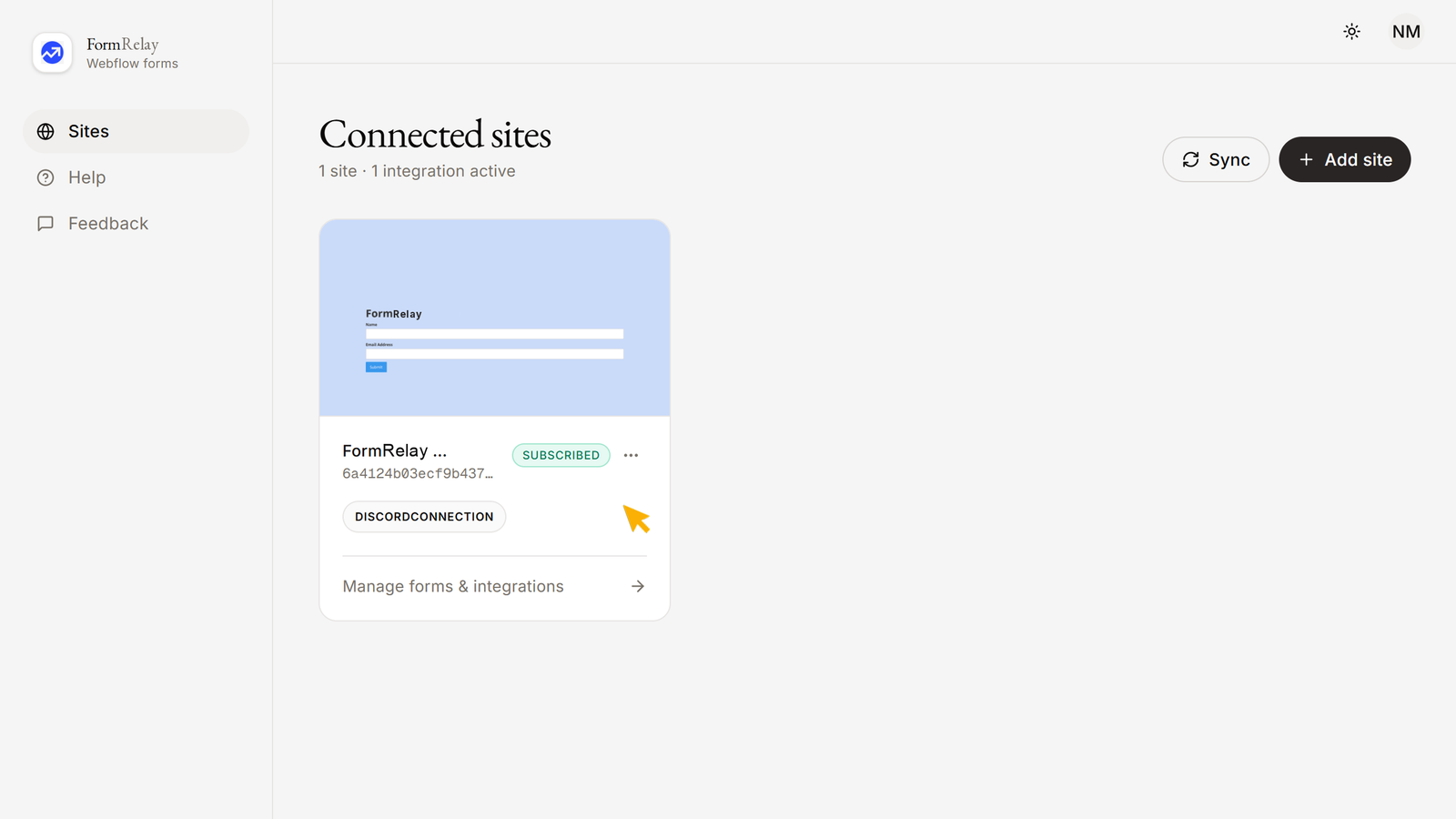
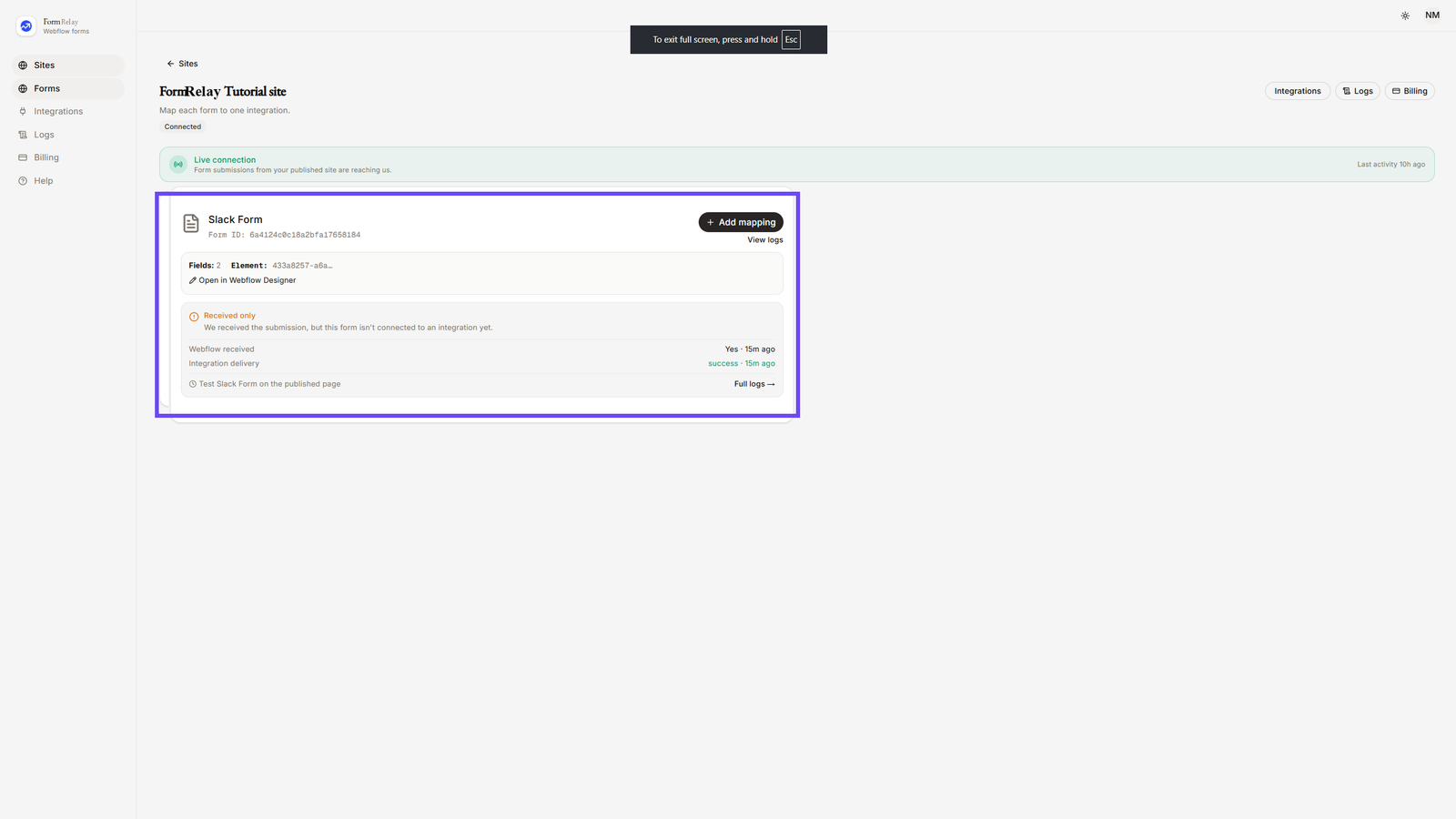
- Here you will see all your forms across the site.
- A form can send to several destinations, but only one of each kind. Adding a second Slack destination to the same form is not possible; edit the existing one instead.
- From the left-hand menu, click on Integrations. You will see available categories such as:
- Apps & Platforms (Notion, Slack, Discord, Airtable)
- Email & marketing (HubSpot, Mailchimp, Klaviyo, Brevo, MailerLite, EmailOctopus, Moosend, Omnisend, Sender)
- Automation & Webhooks (Webhook, Zapier, Make)
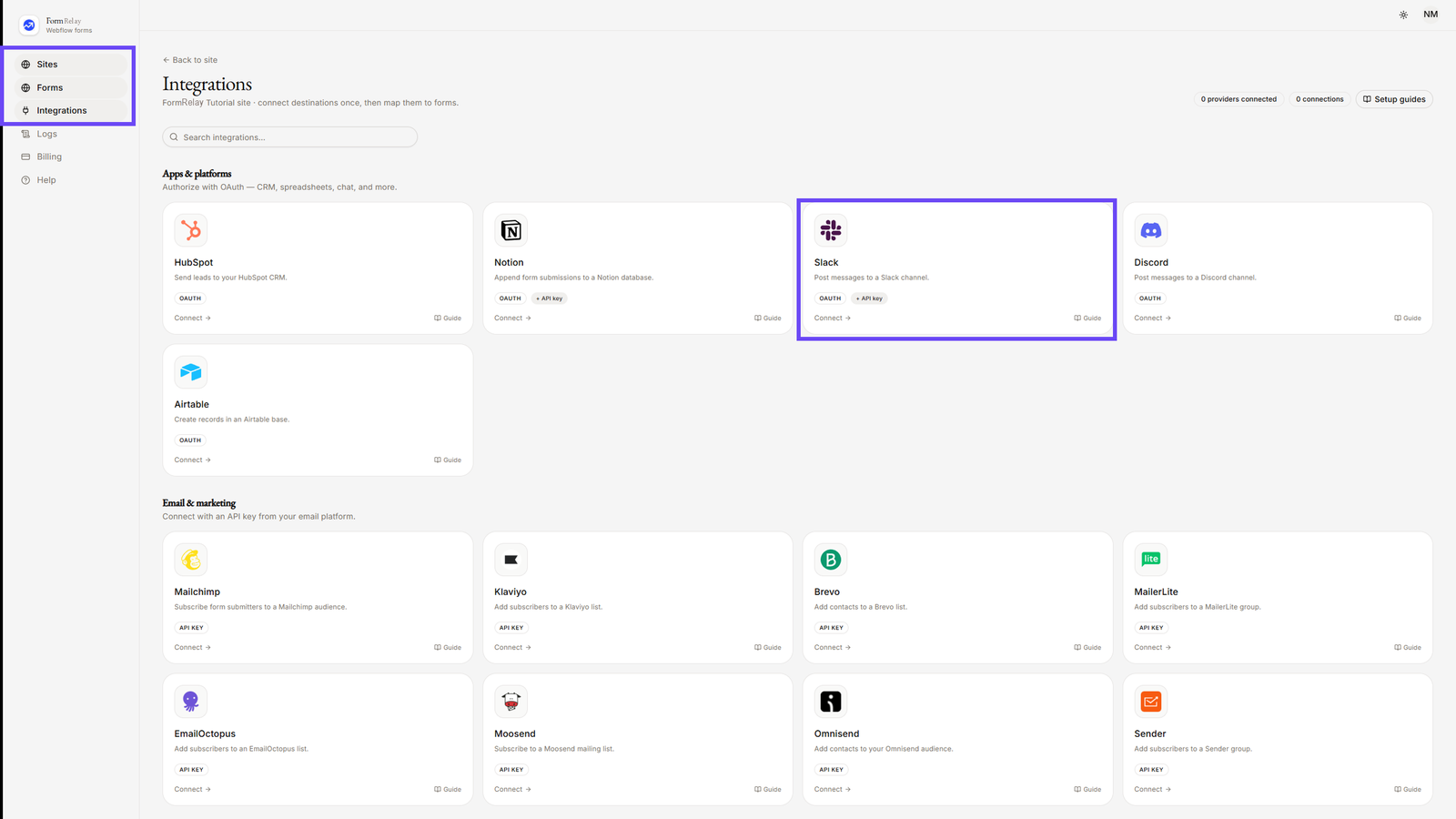
- Under Apps & Platforms, click on Slack.
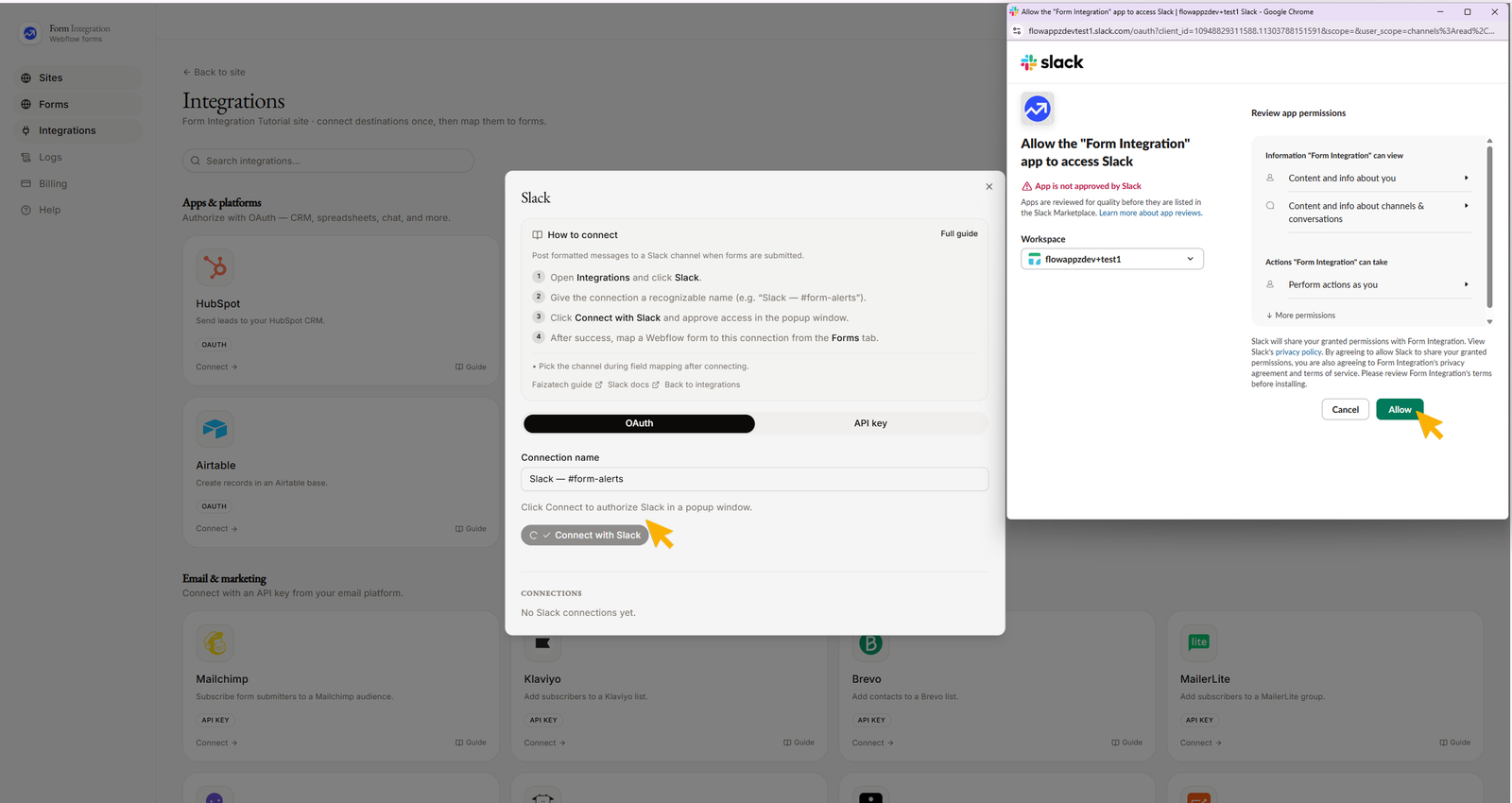
- Give the connection a recognizable name (e.g., “Slack — #form-alerts”).
- Click "Connect with Slack" and approve access in the popup window. Make sure you are signed in to your Slack account.
- After successful authorization, your added Slack integration will appear under "CONNECTIONS".
- You can edit or delete the connection at any time.
- Go back to the Forms menu.
- Choose a Form from your authorized Webflow site.
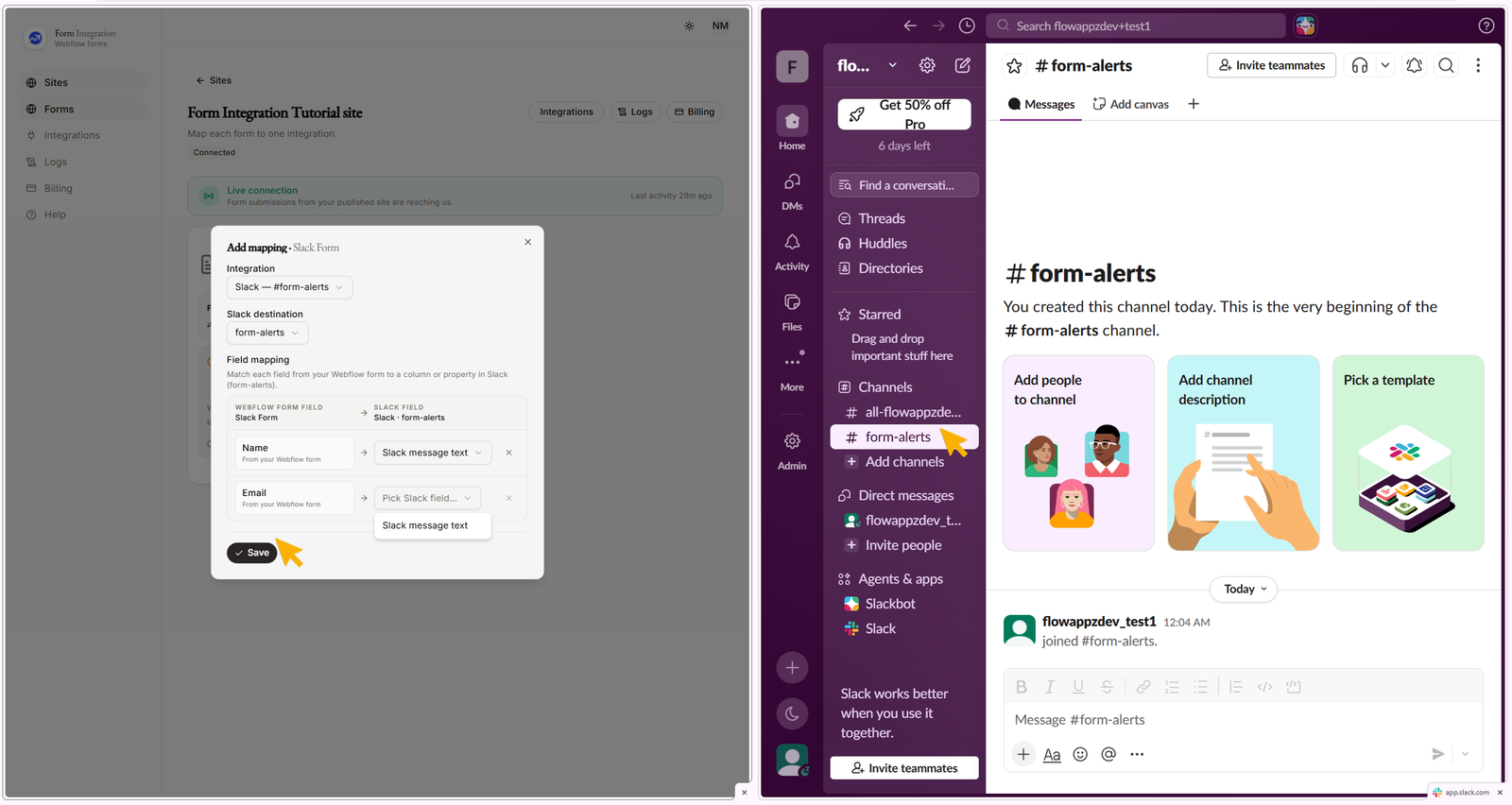
- Click "+ Add destination".
- A popup will open with a dropdown for Integration → Pick an integration.
- Select your Slack integration from the dropdown.
- Configure Field Mapping by matching each field from your Webflow form to a column/property in your Slack "Channels(e.g., #form-alerts)".
- Click Save when finished.
- Test the integration:
- Go to your published Webflow site.
- Fill out and submit the form.
- You will see the data appear in your Slack "Channels(e.g., #form-alerts)" within a few seconds.
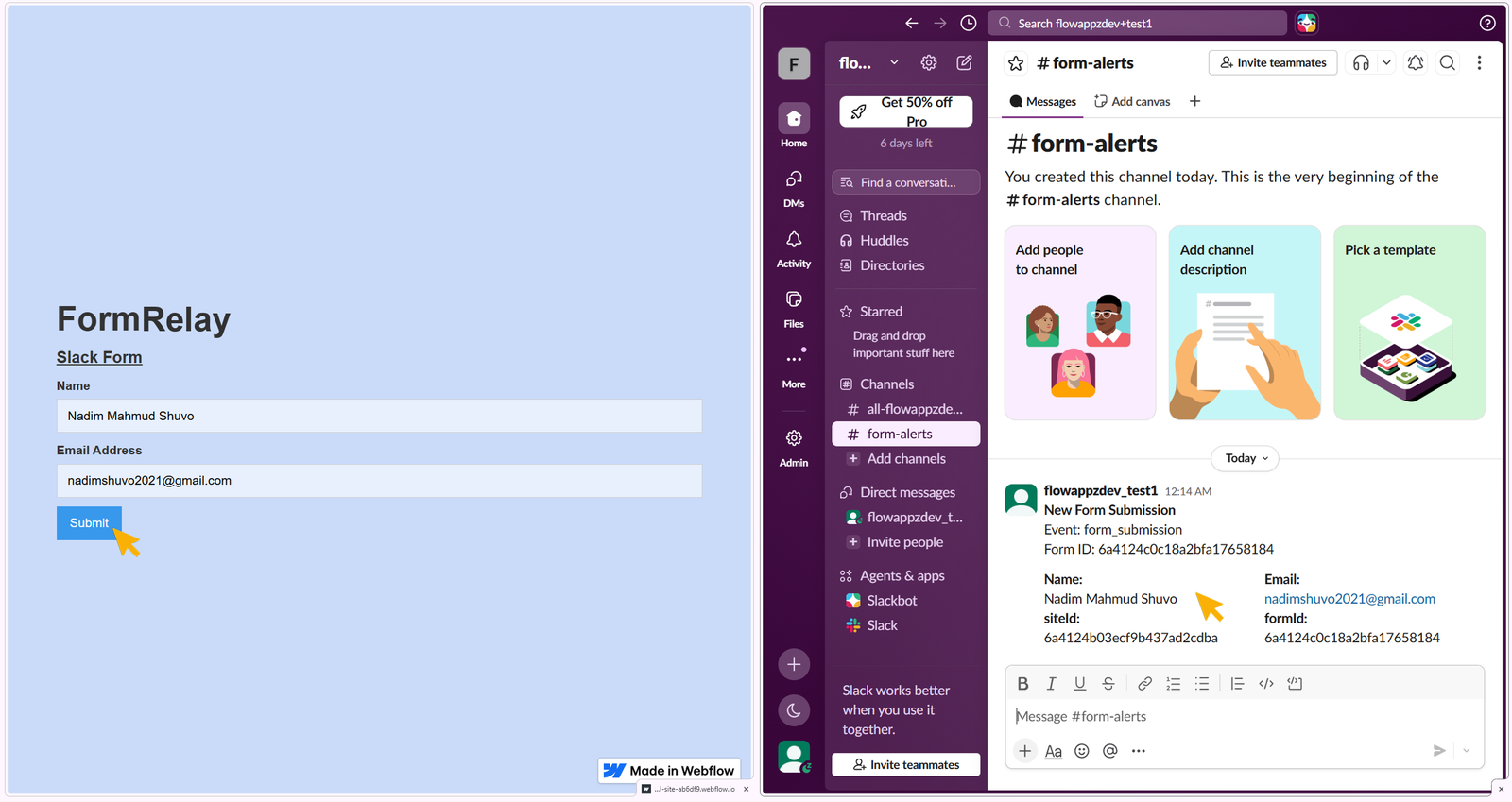
✅ Your Slack integration is now successfully set up and ready to sync form submissions.
Troubleshooting
| What you see | What it means |
|---|---|
invalid_team_for_non_distributed_app |
Slack refused the install for your workspace. This should not happen with the published FormRelay Slack app; email contact@faizatech.com with your workspace name and we will sort it out. |
Still stuck?
Open the site's Logs page in FormRelay. Every attempt is recorded with the destination's own error message, and you can Replay a failed delivery once the cause is fixed. Delivery & Retries explains what the statuses mean.