
Flowcode
Publishing & the CDN
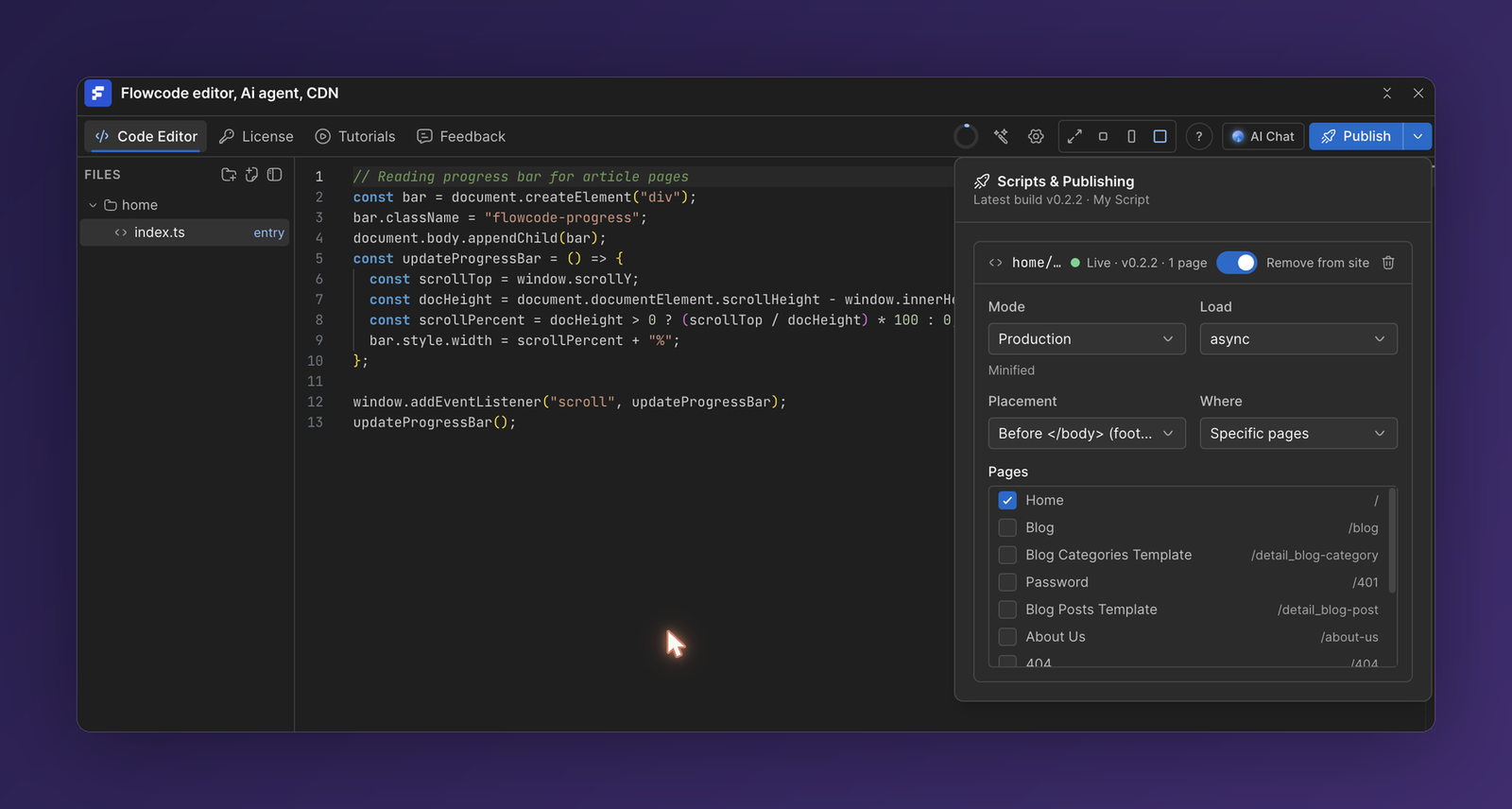
When you publish, Flowcode compiles your project, hosts it on a global CDN, and injects it into your Webflow site. Open the publishing panel from the Publish button in the top toolbar.
How publishing works
- Build — Flowcode bundles your entry file, its local imports, and npm packages into one minified script.
- Host — the bundle is uploaded to Cloudflare's CDN with a versioned, integrity-checked URL, so every publish is cached correctly and updates cleanly.
- Inject — Flowcode adds the script to your Webflow site's custom code on the pages and location you choose.
Your script goes live on your next Webflow publish.
Publishing options
The Scripts & Publishing panel gives you control over how your script loads:
| Option | What it controls |
|---|---|
| Mode | Production ships a minified build. |
| Load | How the browser loads the script, e.g. async. |
| Placement | Where it's injected—before </body> (footer) or in the <head>. |
| Where | Which pages run it—all pages or specific pages. |
| Pages | When using specific pages, tick exactly which pages should load the script. |
Each script shows its status—for example Live · v0.2.2 · 1 page—along with its version and how many pages it's injected on.
Managing scripts
- Remove from site — toggle a script off to stop injecting it, without deleting your code.
- Delete — remove the script and its injection entirely.
- Versions — each publish creates a new version; the current live version is shown in the panel.
💡 Run multiple scripts on one site—for example a global script on every page plus a page-specific one—without them clobbering each other. Each is injected and namespaced independently.
✅ To update a live script, edit your code and publish again. Flowcode builds a new version, updates the CDN, and refreshes the injection automatically.