
Flowcode
npm Packages & Imports
Flowcode lets you use any npm package and split your code across as many files as you like. When you publish, everything is bundled into one optimized script—you never manage dependencies or <script> tags by hand.
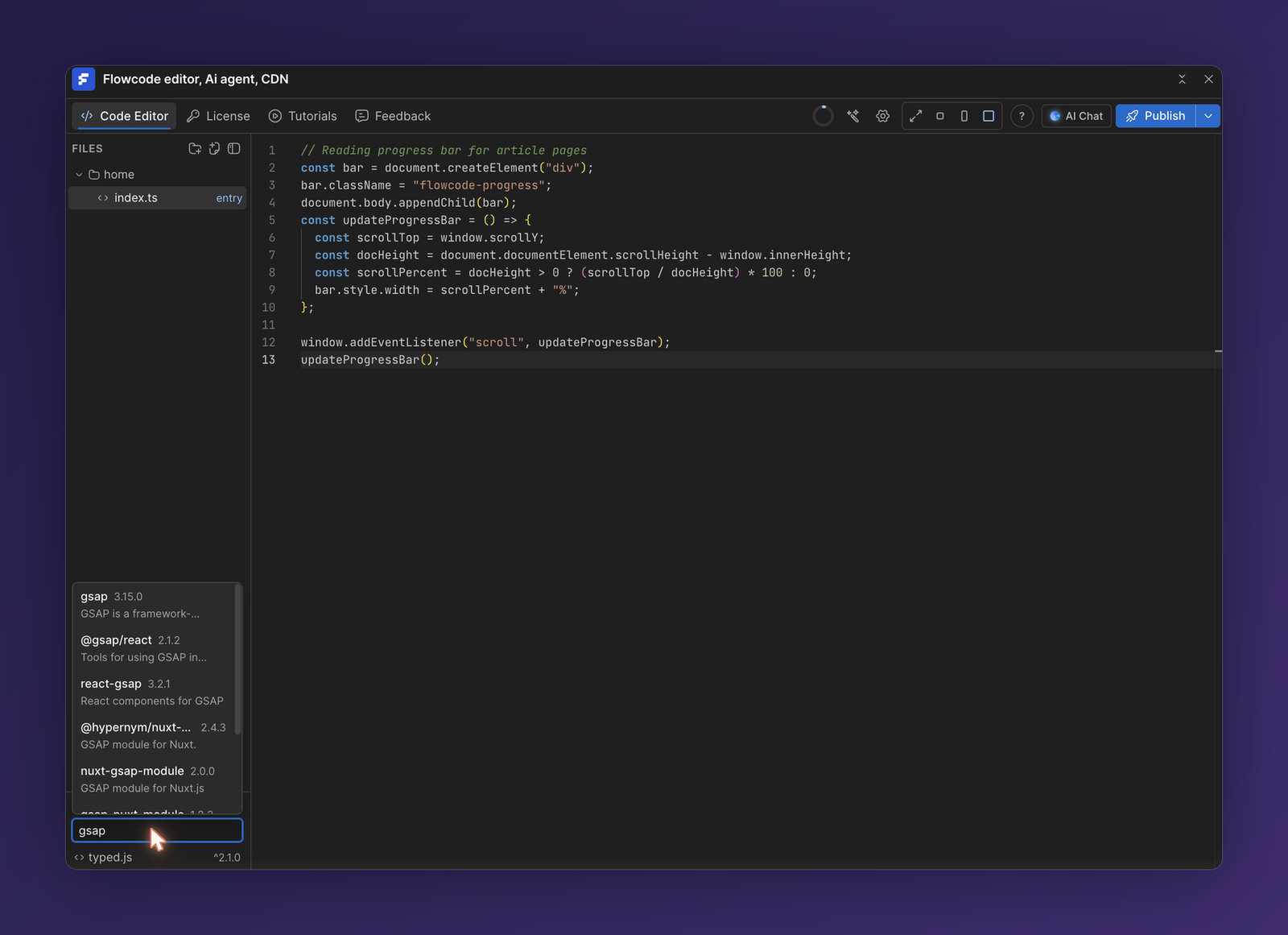
Add an npm package
- In the Packages panel at the bottom of the Files sidebar, use the Search npm field.
- Type a package name (optionally pin a version with
name@version, e.g.typed.js@2.1.0). - Select it to add it to your project. It appears in the installed packages list.
Then import it in your code like any bare import:
import Typed from "typed.js";

new Typed(".headline", {
  strings: ["Design.", "Develop.", "Deploy."],
  typeSpeed: 60,
  loop: true,
});
On publish, Flowcode installs the package, bundles it with your code, and ships a single minified file.
Import your own files
Relative imports let you organize code across files. Every file reachable from your entry file is included in the build:
// home/index.ts   (entry)
import { initGallery } from "./gallery";
import { formatDate } from "./utils/date";

initGallery(document.querySelector(".gallery"));
// home/gallery.ts
export function initGallery(el: Element | null) {
  // ...
}
💡 Only your entry file needs to be published—Flowcode follows its imports and pulls in everything it depends on.
Tips
- Pin versions for predictable builds (
package@1.2.3). - Keep bundles lean. Large packages increase your build size; import only what you need.
- Check build output. If a package fails to install or bundle, the error is reported back in the editor so you can adjust the version or package.