
Form Integrations
Notion
See the installation steps to learn how to install our app and change the form name
Step 1: Set Up Notion Integration
- In your App Dashboard, go to the Sites menu and click on your Authorized Webflow Site.
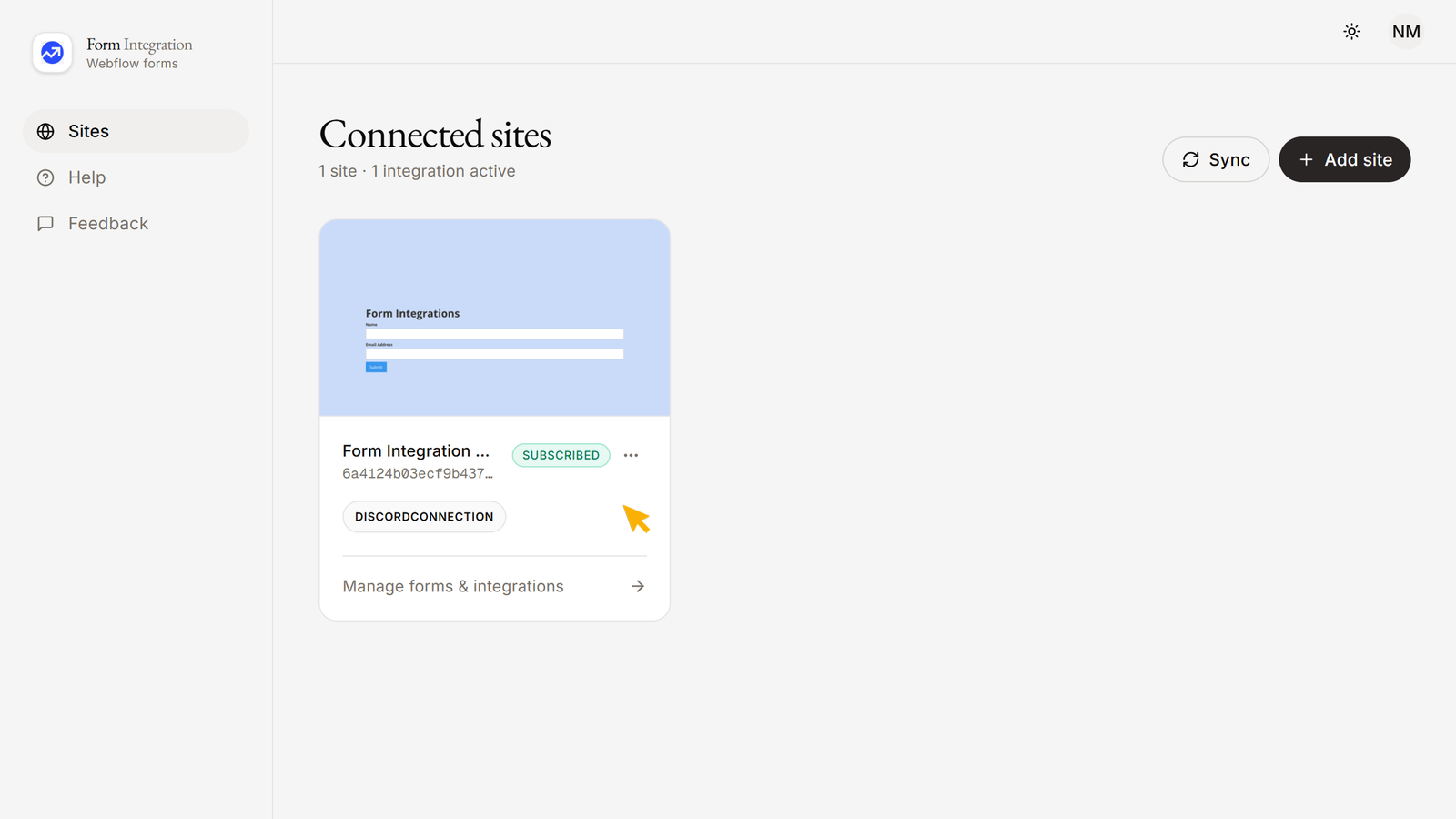
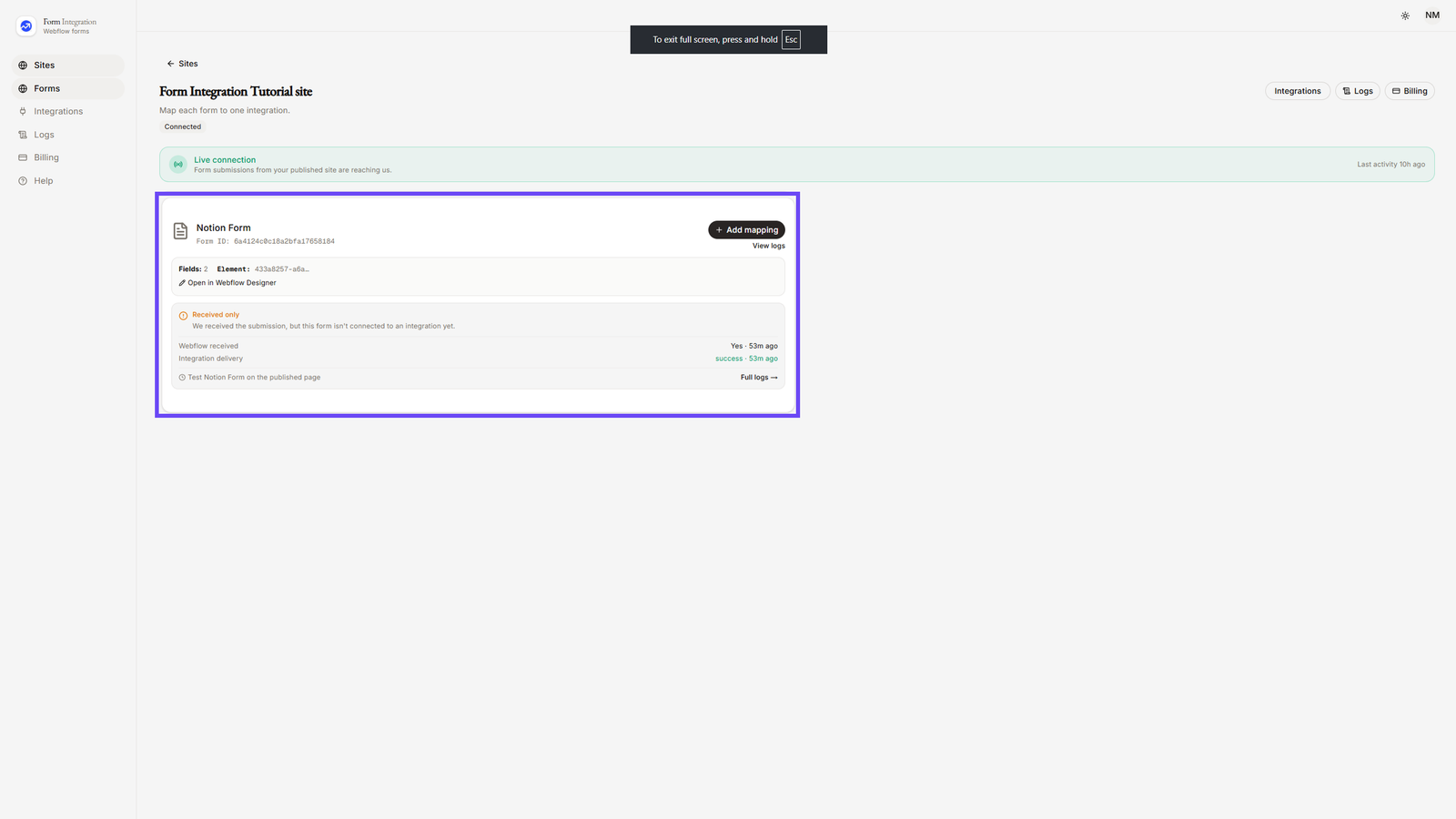
- Here you will see all your forms across the site.
- You can select one form for one integration.
- From the left-hand menu, click on Integrations. You will see available categories such as:
- Apps & Platforms (Hubspot, Notion, Slack, etc.)
- Email & Marketing Tools (Mailchimp, Klaviyo, Brevo, MailerLite, EmailOctopus, etc.)
- Automation & Webhooks (Webhook, Zapier, Make, etc.)
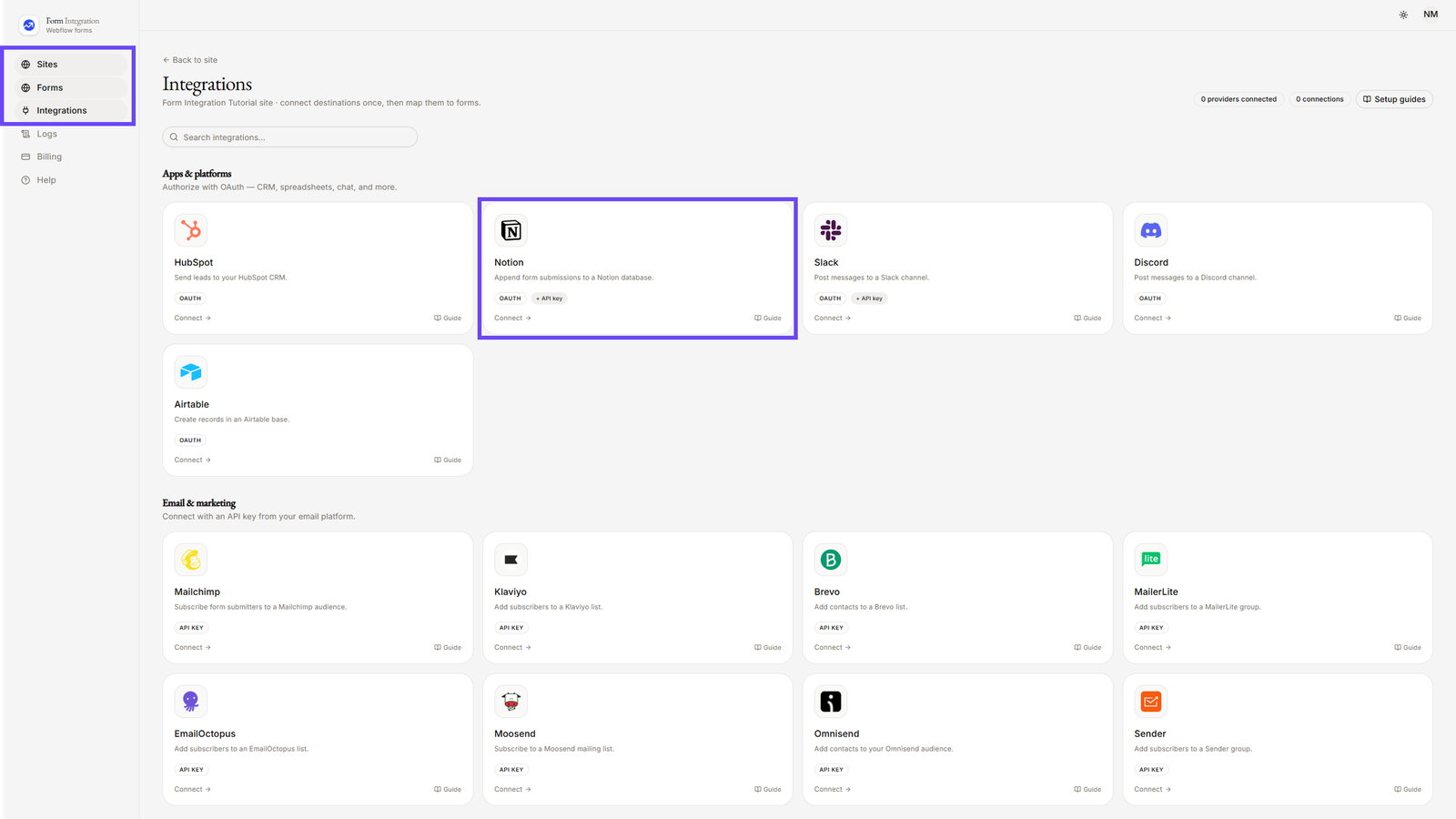
- Under Apps & Platforms, click on Notion.
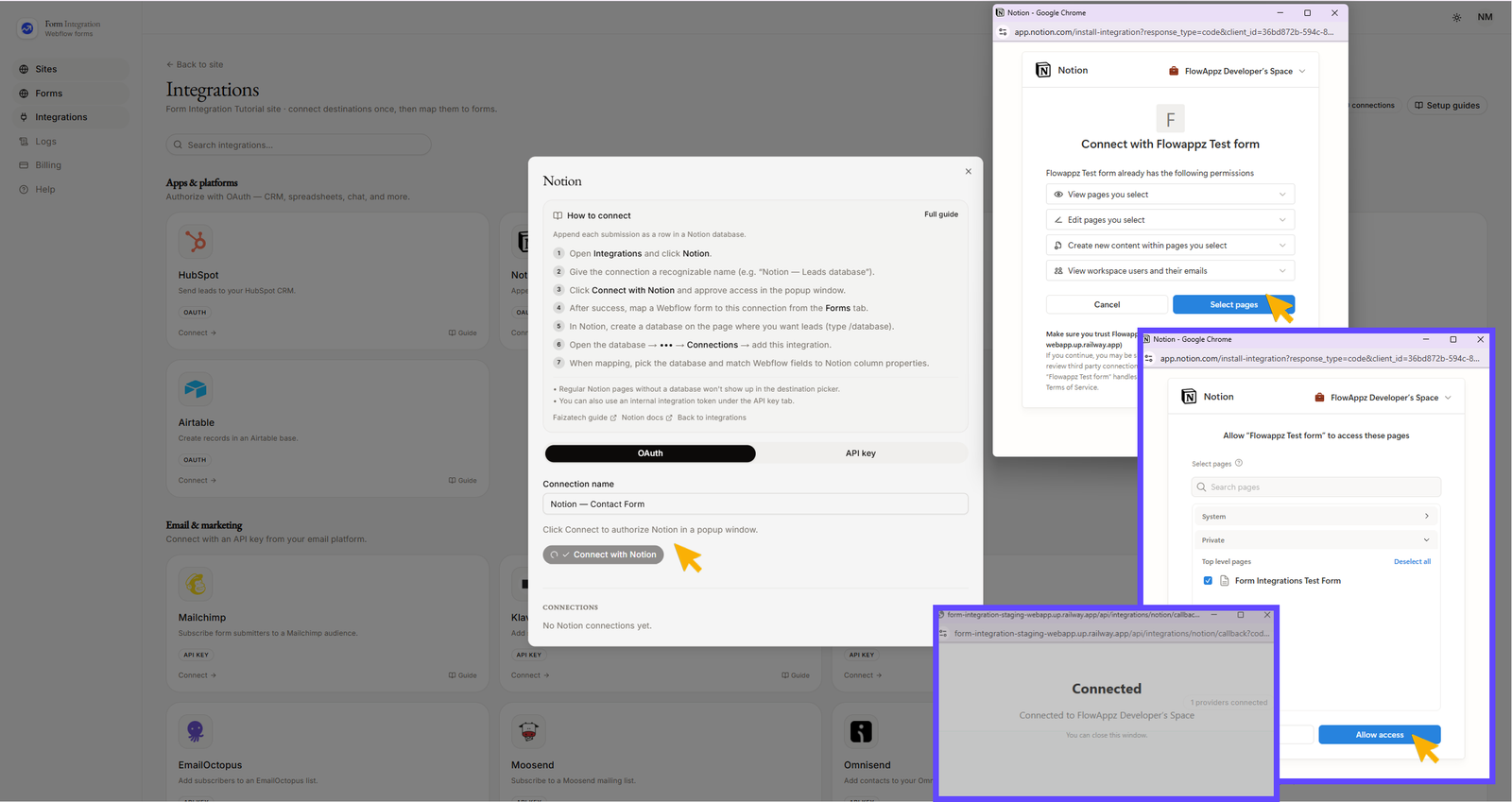
- Give the connection a recognizable name (e.g., “Notion — Contact Form”).
- Click "Connect with Notion" and approve access in the popup window. Make sure you are signed in to your Notion account and have created a database beforehand.
- After successful authorization, your added Notion integration will appear under "CONNECTIONS".
- You can edit or delete the connection at any time.
- Go back to the Forms menu.
- Choose a Form from your authorized Webflow site.
- Click "+ Add Mapping".
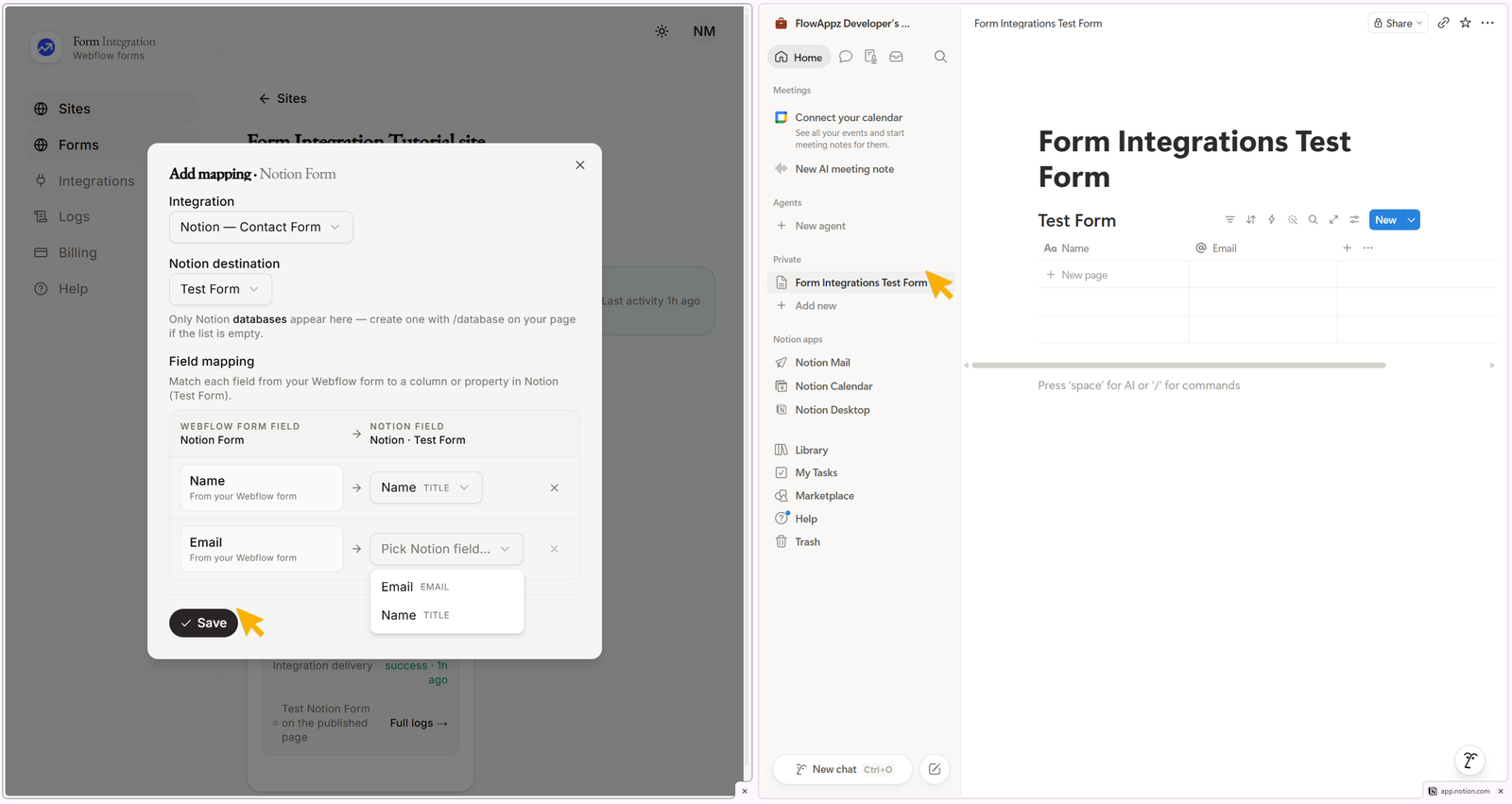
- A popup will open with a dropdown for Integration → Pick an integration.
- Select your Notion integration from the dropdown.
- Configure Field Mapping by matching each field from your Webflow form to a column/property in your Notion "Private Page(e.g., Form Integrations Test Form)".
- Click Save when finished.
- Test the integration:
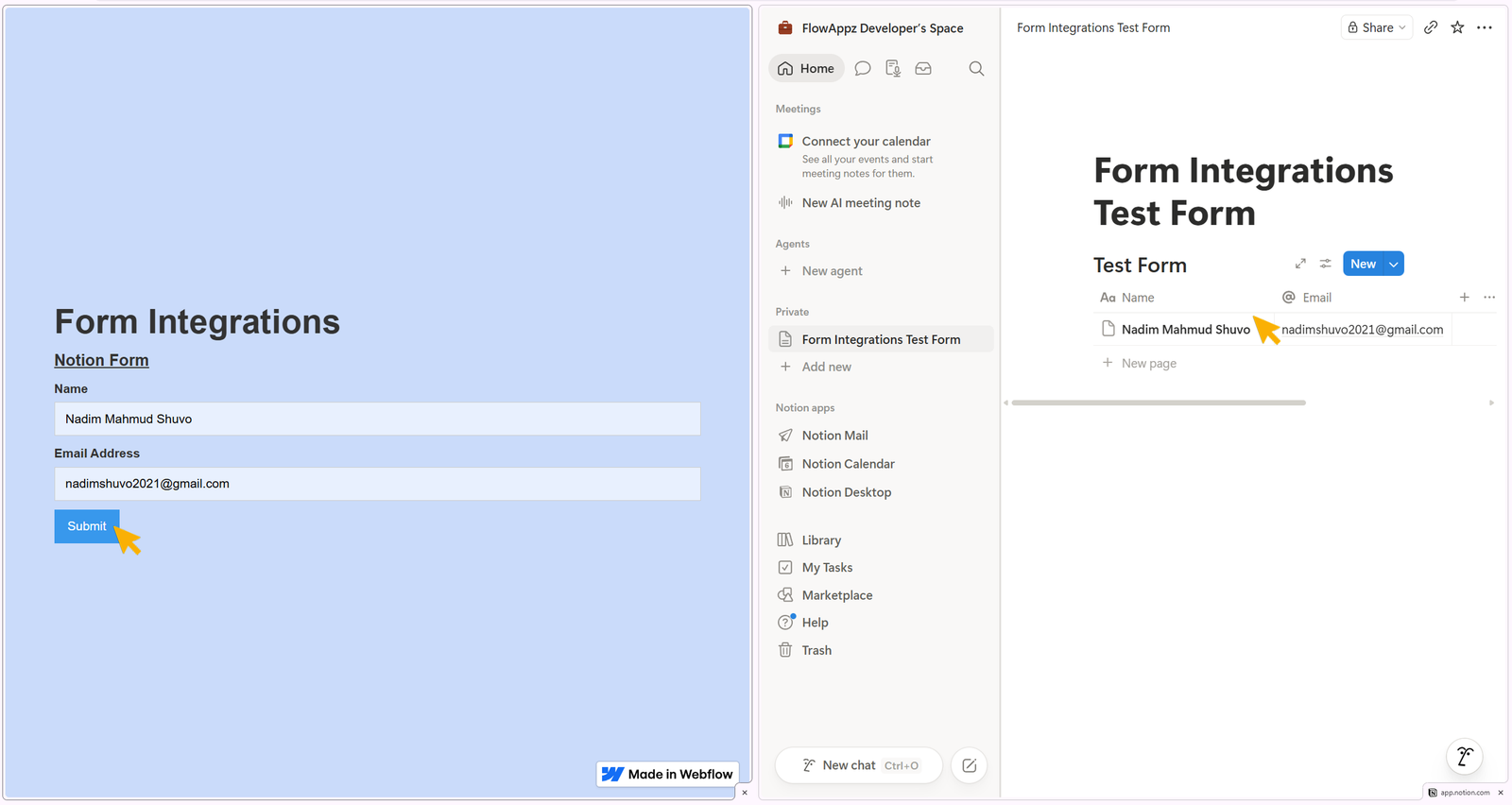
- Go to your published Webflow site.
- Fill out and submit the form.
- You will see the data appear in your Notion "Private Page(e.g., Form Integrations Test Form)" immediately.
✅ Your Notion integration is now successfully set up and ready to sync form submissions.